

Microsoft Word
is the most popular word processing program – and justifiably. It is easy to use and allows you to create
all different types of documents.
Our
guides will show you how:
How
to add a border to a page.
How
to Perform a Mail Merge in Word 2010.
How
to Cite in Word.
How
to produce an E-Form.
These tools become very handy when you are using the MS Word for
various purposes.
----------------------------------------------------
Add a border to a page
 |
| MAIN MENU |
You can put a border around just one page if that page is at the beginning of a document or a section. If the page is in the middle of your document, first insert a section break.
-
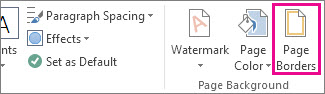
To add the border, click Design > Page Borders:
-
In the Borders and Shading box, design your border:
Under Setting, choose the border style you want.
Under Style, click the line style you want.
Click the arrow under Color and choose a border color.
Click the arrow under Width and choose the width you want.
If you want a clip-art border instead, click the arrow under Art and choose a border graphic.

Under Style, click the line style you want.
Click the arrow under Color and choose a border color.
Click the arrow under Width and choose the width you want.
If you want a clip-art border instead, click the arrow under Art and choose a border graphic.
-
Next, click the arrow under Apply to and choose This section - First page only.

(This setting also works if you’re adding the border to the first page in your document.)
-
The Preview box confirms your border styles. To remove the border from one side, click that line in the Preview box.
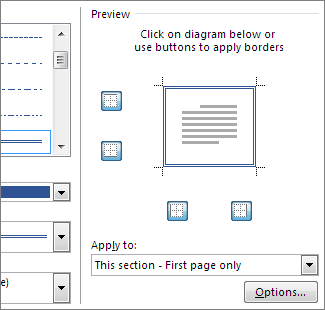
Tip To change where the border appears on the page, click Options and adjust the margin settings.
How to Perform a Mail Merge in Word 2010
 |
| Classic Mail Merge Menu |
Creating multiple e-mails, and changing the recipients information for each e-mail, can be a tedious task However; Word 2010 comes with a Mail Merge feature allowing the user to create multiple e-mails for different recipients at once. Although not that many people know how to use mail merge, this article will show you how.
1 - Launch Word 2010

2 - Navigate to Mailings Tab.

3 - Go to Start Mail Merge options.

4 - Click Step by Step Mail Merge Wizard.

5 - Choose the type of document you want.

6 - This step will ask you to choose what document to
use/type document now.

7 - Choose your recipients.

8 - Choose the Excel worksheet that has your chosen
recipients.

9 - Click Open.

10 - Follow the rest of the Mail-Merge Wizard. Depending on
the options chosen different dialog boxes will show up, making very difficult
to provide a step by step for the rest. However; the rest of the steps are
self-explanatory.

11 - Click Finish and Merge on the Mailings Tab when done.

For more information on Mail Merging
How to
Cite in Word
 |
| Classic Reference menu |
Microsoft Word has many automatic features that help users to write reports and academic papers. One of the most valuable features is keeping a list of sources and citations. Once you learn to enter sources, you can automatically generate a Works Cited list at the end of your paper.
Part 1
of 3: Preparing to Cite Sources
1 - Ask your teacher what style they prefer for citing
sources. The most common choices are American Psychological Association (APA),
Modern Language Association (MLA), Turabian and Chicago styles.
2 - Gather the important information about all of your
sources. This will include authors, title, page numbers, publisher, edition,
city of publication, year of publication and date of access.
3 - Become familiar with the edition of Microsoft Word you
are using. Each version places the works cited section in a different place. In
most editions it is under a “References” tab in the “Document Elements” or
“Document Options” section.
4 - Click on the “Works Cited” choice under references.
Then, select the style, such as “MLA” from the drop down box.
Part 2
of 3: Citing Sources While Writing
1 - Type your information that you want to be sourced in
your Word document. Click on the end of the sentence when you are ready to cite
a source.
2- Return to the References tab at the top of the page.
Click “Manage” and the plus sign at the bottom of the Citations dialogue box to
add a new citation. If you are using a version of Word before 2011, you will
click the button that says “Insert Citation” and select “Add New Source.
3 - Fill out the “Create New Source” dialogue box. The
fields that are recommended for your style of writing have an asterisk on them.
4 - Press “Ok” when you are finished. The source will be
added to your Citations List.
5 - Access the list of citations when you continue to
reference the source in your paper. Each time you want to source a piece of
information, you can select an already listed source or add a new source to the
list. Click “Edit This Citation” to use the source but change the page number.
6 - Add all of your referenced sources to your list when you
finish writing your paper. You can also use the “Footnote” and “End note”
buttons in the “Citations” box to add notes to each page.
Part 3
of 3: Creating a Works Cited Page
1 - Click the “Bibliography” button when you have listed all
the sources and finished writing the paper. Choose between “Bibliography” and
“Works Cited.” Your teacher should have specified the type of citation sheet
that is required.
2 - Click the “Works Cited” button. The citations will be
added in a list at the end of your paper. They are considered a separate object
than the writing, similar to a table or image on the paper.
3 - Update the Works Cited object if you change sources in
your document. Click on the downward arrow next to the word “Bibliography.”
Select “Update Citations and Bibliography.”
4 - Save your document frequently.
--------------------------------------------
How to produce an E-Form
 |
| Classic E-Form Menu |
Create forms that users complete or print in Word

Keywords
check box; creating forms; drop-down list; drop down menu; electronic forms
You
can create a form in Microsoft Office Word 2007 by starting with a
template and adding content controls, including text boxes, date
pickers, and drop-down lists. Other people can use Office Word 2007 to
fill out the form on their computer. In an advanced scenario, any
content controls that you add to a form can also be linked to data.
You can also create a form by starting with a sample template. Many are available on the Microsoft Office Online Web site.
NOTE You
can print a form that was created by using content controls in Office
Word 2007, but the boxes around the content controls will not be
printed.
Create a form
Step 1: Set up Word for creating forms
- Click the Microsoft Office Button
 , and then click Word Options.
 - Click Popular.
- Select the Show Developer tab in the Ribbon check box, and then click OK.NOTE The Ribbon is a component of the Microsoft Office Fluent user interface.
Step 2: Open a template or a document on which to base the form
- Click the Microsoft Office Button, and then click New.
- Under Templates, click My templates.
- Double-click Normal, and then click Template or Document under Create New.
- Click the Microsoft Office Button, and then click Save As.
- In the Save As dialog box, give the new template or document a file name, and then click Save.
Step 3: Add content controls to the form
Design
the form by sketching a layout first, or use an existing form as a
guide. In your form, you can add content controls, tables, and other
graphics elements.
On the Developer tab, in the Controls group, click Design Mode, and then click where you want to insert a control.
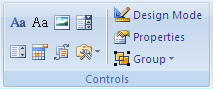
Do any of the following:
Insert a text control where users can enter text
- On the Developer tab, in the Controls group, click the Rich Text control
 or the Text control
  .
.
Insert a text fill-in field
IMPORTANT Spell
Check will not flag any errors that are typed in the text form field.
If you want to run Spell Check, use the Rich Text control or the Text
control.
- On the Developer tab, in the Controls group, click Legacy Tools.
- Click Text Form Field.
- In the Controls group, click Design Mode, and then do any of the following:
- To add a line under the field, select the field, and then click Underline in the Font group on the Home tab.
- To limit the amount of information a person can type in the field, set a maximum width by selecting the field, clicking Properties in the Controls group, and entering a value under Maximum length.
- To make the field look as long as its maximum length, add instructional text by clicking Properties in the Controls group, and typing text, such as Type your first name here, under Default text.
Insert a drop-down list that restricts available choices to those you specify
- On the Developer tab, in the Controls group, click the Drop-Down List control
 .
. - Select the content control, and then on the Developer tab, in the Controls group, click Properties.
- To create a list of choices, under Drop-Down List Properties, click Add.
- Type a choice in the Display Name box, such as Yes, No, or Maybe.Repeat this step until all of the choices are in the drop-down list.
Insert a check box
- On the Developer tab, in the Controls group, click Legacy Tools.
- Click Check Box Form Field.
- Type a space, and then type a label for the check box.
- To remove the shading from the check box, click Legacy Tools, and then click Shading.
NOTE You won't be able to select or clear the check box until you protect the form.
Step 4: Set or change properties for content controls
Each
content control has properties that you can set or change. For example,
the Date Picker control offers options for the format you want to use
to display the date.
- Right-click the content control that you want to change.
- Click Properties, and change the properties that you want.
Step 5: Add instructional text to the form
Instructional
text can enhance the usability of the form you create and distribute.
You can change the default instructional text in content controls.
To customize the default instructional text for your form users, do the following:
- On the Developer tab, in the Controls group, click Design Mode.
- Click the content control where you want to revise the placeholder instructional text.
- Edit the placeholder text and format it any way you want.
- If you want the content control to disappear when someone types in their own content to replace your instructions in a Rich Text control or a Text control, click Properties in the Controls group, and then select the Remove content control when contents are edited check box.
- On the Developer tab, in the Controls group, click Design Mode to turn off the design feature and save the instructional text.
NOTE Do not select the Contents cannot be edited check box if you want form users to replace the instructional text with their own text.
Add protection to a form and prepare it for distribution
You
can protect individual content controls in a form template to help
prevent someone from deleting or editing a particular content control or
group of controls, or you can prepare a form to be distributed and
filled out by locking it. You can help protect all of the form template
content with a password.
TIP If
you want, you can test the form prior to distributing it. Open the
form, fill it out as the user would, and then save a copy in a location
that you want.
Protect parts of a form
- Open the form that you want to protect.
- Select the content control or the group of controls to which you want to restrict changes.To group several controls, select the controls by pressing SHIFT and clicking each control that you want to group. On the Developer tab, in the Controls group, click Group, and then click Group.
- On the Developer tab, in the Controls group, click Properties.
- In the Content Control Properties dialog box, under Locking, do either of the following:
- Select the Content control cannot be deleted check box, which allows the content of the control to be edited but the control itself cannot be deleted from the template or a document that is based on the template.
- Select the Contents cannot be edited check box, which allows you to delete the control but does not allow you to edit the content in the control.NOTE This option is not available for all controls.
Prepare a form to be filled out
- Open the form that you want to lock so that it can be filled out.
- On the Developer tab, in the Protect group, click Protect Document, and then click Restrict Formatting and Editing.

- In the Protect Document task pane, under Editing restrictions, select the Allow only this type of editing in the document check box.
- In the list of editing restrictions, select Filling in forms.
- Under Start enforcement, click Yes, Start Enforcing Protection.
- To assign a password to the document so that only reviewers who know the password can remove the protection, type a password in the Enter new password (optional) box, and then confirm the password.IMPORTANT If you choose not to use a password, anyone can change your editing restrictions.Use strong passwords that combine uppercase and lowercase letters, numbers, and symbols. Weak passwords don't mix these elements. Strong password: Y6dh!et5. Weak password: House27. Passwords should be 8 or more characters in length. A pass phrase that uses 14 or more characters is better. For more information, see Help protect your personal information with strong passwords.It is critical that you remember your password. If you forget your password, Microsoft cannot retrieve it. Store the passwords that you write down in a secure place away from the information that they help protect.
For more information E-FORMS

No comments:
Post a Comment